Skip to content
Get Started (opens in a new tab)

How can we help?

Find answers to common questions about using Voisight, managing your account, creating reports, and working with your team.

Support topics

Select a topic to learn more

Getting Started

Learn the basics and get set up with Voisight.

Getting started with Voisight is simple. Your organization provides the appropriate access, and your account type determines the tools and information available to you.

Once you’re signed in, your dashboard gives you access to the features available for your role.

You can use this section to learn about:

  • Signing in to your account
  • Understanding your dashboard
  • Navigating Voisight
  • Understanding your account type
  • Getting started with your first report

Voice recording

How to record, pause, and get the best results

How recording works

When you start a report in Voisight, the timestamp locks automatically the moment you select your report type. You then move to the recording screen where you tap the green microphone button to begin.

Speak naturally — exactly the way you would describe what happened to a colleague. You do not need to use formal or structured language. The AI handles all of that for you.

Step by step

  1. Tap the microphone button to start recording
  2. Watch your words appear in the transcript box in real time as you speak
  3. Tap Resume to continue adding to the same transcript
  4. Tap Done when you are finished speaking — the AI will generate your report

Creating a report

Step by step from recording to submission

The steps

  1. Tap New report and select the report type — Progress Note, Non-Serious Incident, or Serious Incident
  2. Enter the client’s details
  3. Record your account using your voice.
  4. Review and edit the live transcript if needed before proceeding
  5. Review the AI-generated report — check each section and tap Edit on any section that needs a correction
  6. Add any attachments if needed — files or supporting documents
  7. Tap Submit — your administrator is notified immediately

Drafts & auto-save

How drafts work and what happens if you close the app

Auto-save is always on

Voisight saves your report automatically at every step of the creation flow. You do not need to tap a save button at any point. The moment you finish recording, your transcript is saved. The moment the AI generates your report, it is saved. Every edit you make is saved instantly.

If you close the browser tab, close the app, or your phone battery dies mid-flow, your work is not lost. Everything is recovered the next time you open Voisight.

Finding your drafts

  1. Open Voisight — if you have an unfinished report, a banner will appear on your home screen prompting you to continue
  2. Or tap Drafts in the navigation — all unsubmitted reports are listed there
  3. Tap any draft to continue exactly where you left off

Draft reminders

If a draft has been sitting unsubmitted for more than 7 days, Voisight will send you a reminder notification. Your administrator cannot see drafts — they only appear in your queue until you submit them.

Report statuses

What each status means and what to do next

The four statuses

Every report in Voisight has one of four statuses at any given time. Each status tells you exactly where the report is in the review process and whether you need to take any action.

Draft

You have started the report but have not submitted it yet. Only you can see it. Your administrator has no visibility of drafts. Take action — finish and submit as soon as possible.

Submitted

You have submitted the report and it is now with your administrator for review. The report is locked — you cannot edit it. No action needed from you at this point.

Sent back

Your administrator has reviewed the report and sent it back with a comment requesting a correction. You will receive a notification. Open the report, read the comment, make the correction, and resubmit.

Finalized

Your administrator has approved the report. It is now permanently locked and a PDF has been generated. No further action is needed. This is the completed state of a report.

Report sent back

What to do when your administrator returns a report

What sent back means

When your administrator reviews a report and finds something that needs correcting — a missing detail, an unclear section, or incorrect information — they will send it back to you with a specific comment explaining what needs to change.

You will receive a notification the moment this happens. The report status changes to Sent back and appears at the top of your reports list

How to respond

  • Open the report from your reports list
  • Read your administrator’s comment carefully — it will be shown at the top of the report
  • Tap Edit on the section that needs to be corrected
  • Make the correction and review the rest of the report
  • Tap Submit — your administrator is notified that the updated report is ready for review

Microphone access

How to enable or fix microphone permissions

Why microphone access is needed

Voisight needs access to your device’s microphone to record your voice and generate the live transcript. Without microphone access, you cannot create a voice report.

Enable microphone on iPhone

  1. Open the Settings app on your iPhone
  2. Scroll down and tap Voisight (or your browser if using the web app)
  3. Tap Microphone and switch it to Allow
  4. Return to Voisight and try recording again

Enable microphone on Android

  1. Open Settings on your Android device
  2. Tap Apps → Voisight (or your browser)
  3. Tap Permissions → Microphone → Allow
  4. Return to Voisight and try recording again

Timestamps explained

Why timestamps are locked and what that means for you

What is a timestamp?

A timestamp is the exact date and time that your report was started. It is recorded automatically by Voisight’s servers the moment you select a report type — before you have typed or spoken a single word.

Why is it locked?

The timestamp is locked immediately and permanently. Nobody can change it — not you, not your administrator, not your owner.

In care settings, the time and date of documentation is a compliance-critical piece of information. A timestamp that can be changed is a timestamp that cannot be trusted. Locking it protects you, your facility, and the integrity of the record.

What it means for you

Start your report as close to the session or incident as possible. The timestamp reflects when you began documenting — not when the event happened. If you are documenting an incident that happened at 11:03 AM and you start the report at 11:05 AM, the timestamp will read 11:05 AM.

My account

Updating your details, password, and profile

Updating your personal details

  1. Tap Profile in the navigation bar
  2. Tap My account
  3. Tap the field you want to update
  4. Make your change and tap Save

Changing your password

  1. Tap Profile → My account → Change password
  2. Enter your current password to verify it is you
  3. Enter your new password — it must be at least 8 characters, contain an uppercase letter, a number, and a special character
  4. A verification code is sent to your email — enter it to confirm
  5. All other active sessions will be signed out automatically for your security

Access codes

How to join a facility using an access code

What is an access code?

An access code is a unique code generated by your facility administrator. It is how care workers are invited to join a facility on Voisight. Each code is single-use and has an expiry date set by your administrator — usually 24 hours, 48 hours, or 7 days.

How to use an access code

  1. Get the access code from your administrator — they may share it verbally, by text, or via your facility’s internal communication system
  2. Open Voisight and tap Create account on the login screen
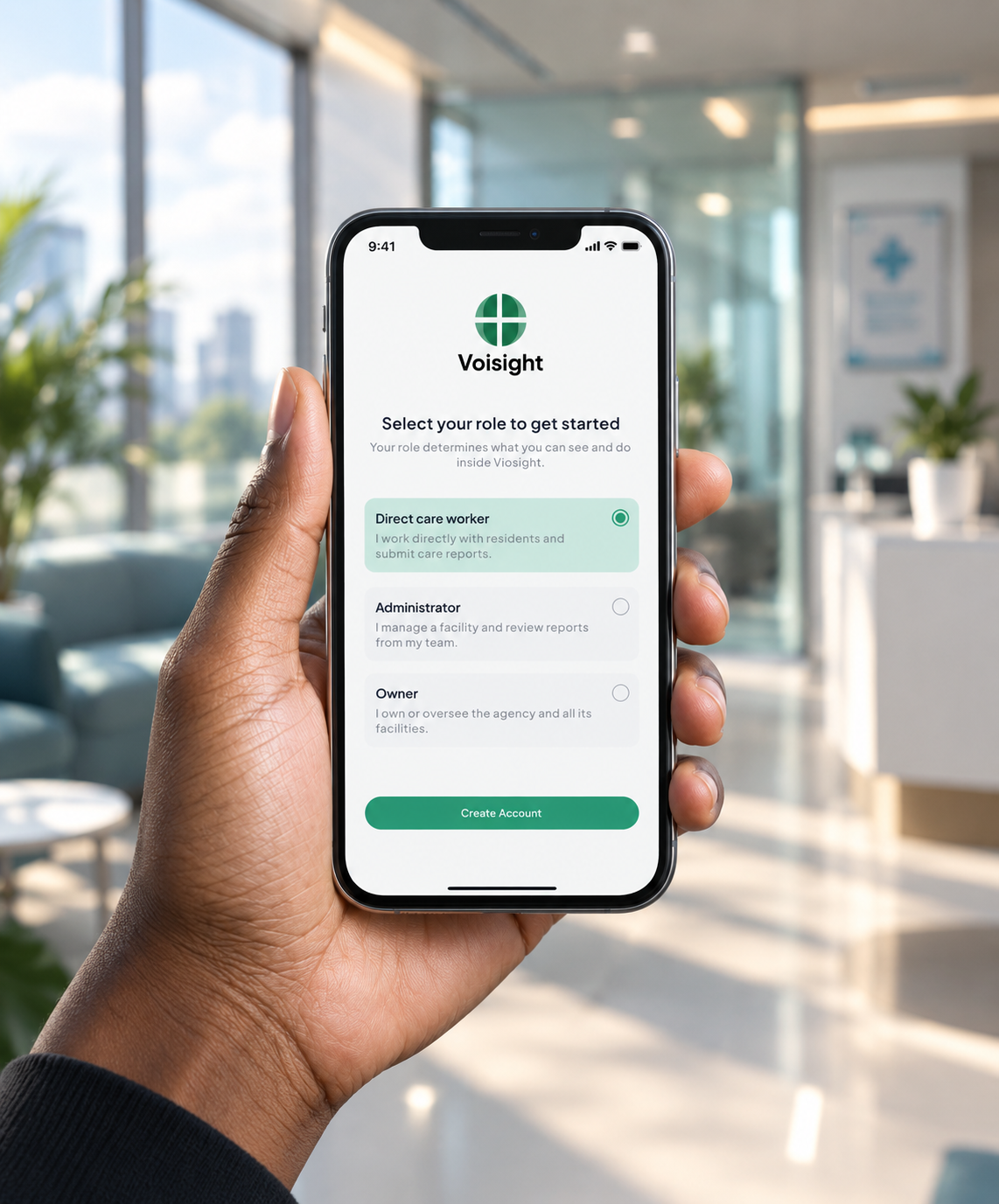
  3. Select Direct care worker as your account type
  4. Enter the access code when prompted
  5. Complete your account setup — your administrator will receive a notification and approve your request

Privacy & data

What Voisight stores, what it deletes, and who can see it

What Voisight stores

Voisight stores your account information — name, email, phone number, role, and facility — and the text content of any reports you create. For reports involving clients,

What Voisight deletes

Your voice recordings are permanently deleted from Voisight’s servers the moment report generation is complete. No audio is ever retained, stored, or used for any other purpose. You cannot recover your recordings after this point — and neither can we.

Who can see your reports

Only three people can see any of your reports — you, your facility administrator, and your agency owner. Nobody outside your organisation can access your reports — including Voisight staff — except where required by law.

Your rights

You have the right to request a copy of your personal data, ask for corrections, or request deletion — subject to any legal retention obligations that apply to care records. To make a request, contact us at admin@voisight.com.

Report download

How finalized reports are downloaded and what they contain

Who can download reports?

Only administrators and owners can download finalized reports as PDFs. As a care worker, you cannot print or export reports. This is a deliberate compliance decision only authorized personnel at the review level can produce official copies of records.

What the PDF contains

Every downloaded PDF includes the report type the locked session timestamp, the full audit history, and signature blocks for all required signatories.

Serious Incident Reports also include the mandatory notifications table showing which parties were notified, by what method, and within what timeframe

GET THE VOISIGHT APP TODAY

Download Voisight on your phone and never fall behind on documentation again.
The Voisight app on a phone